
Refreshed Boat Detail Page within the ProSeller Platform
The ProSeller Platform Boat Detail Page has been refreshed with a new layout, a completely redesigned sharing experience, richer media display, and new listing insights, all designed to help you showcase boats and connect with buyers more effectively.
Nothing is being removed. This is an upgrade to the existing experience. All your listings, data, and workflows are automatically carried over.
What's New at a Glance
| Feature | What Changed |
|---|---|
| Sharing Experience | All share options now in one place — link, email, print, export, and more |
| Image Display | Up to 3 hero images highlighted |
| Media Gallery | All media types shown with counts — photos, videos, 360, and immersive tours |
| Engagement Metrics | Views & Saves now visible directly on the listing |
| Portal Visibility | See which portals your listing is live on, with direct links |
| Multi-Broker Support | Up to 2 brokers displayed with full contact info |
| Edit Listing Access | Quick-edit icon takes you directly to Inventory |
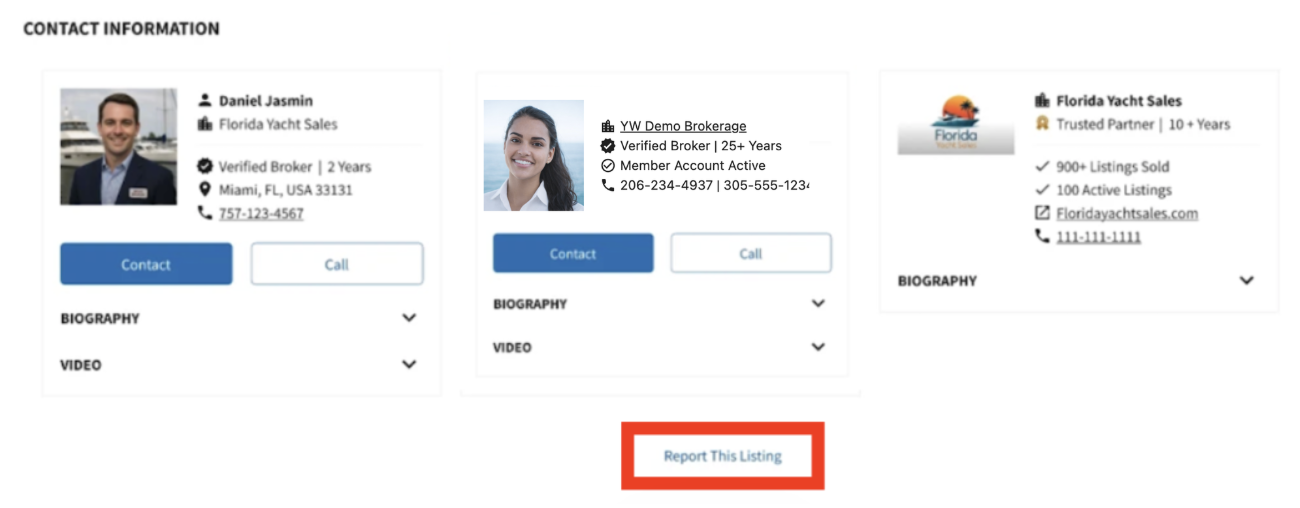
| Report a Listing | Button to report policy violations |
Video Walkthrough
To see everything in action, please watch the short walkthrough video below.
Step-by-Step Walkthrough
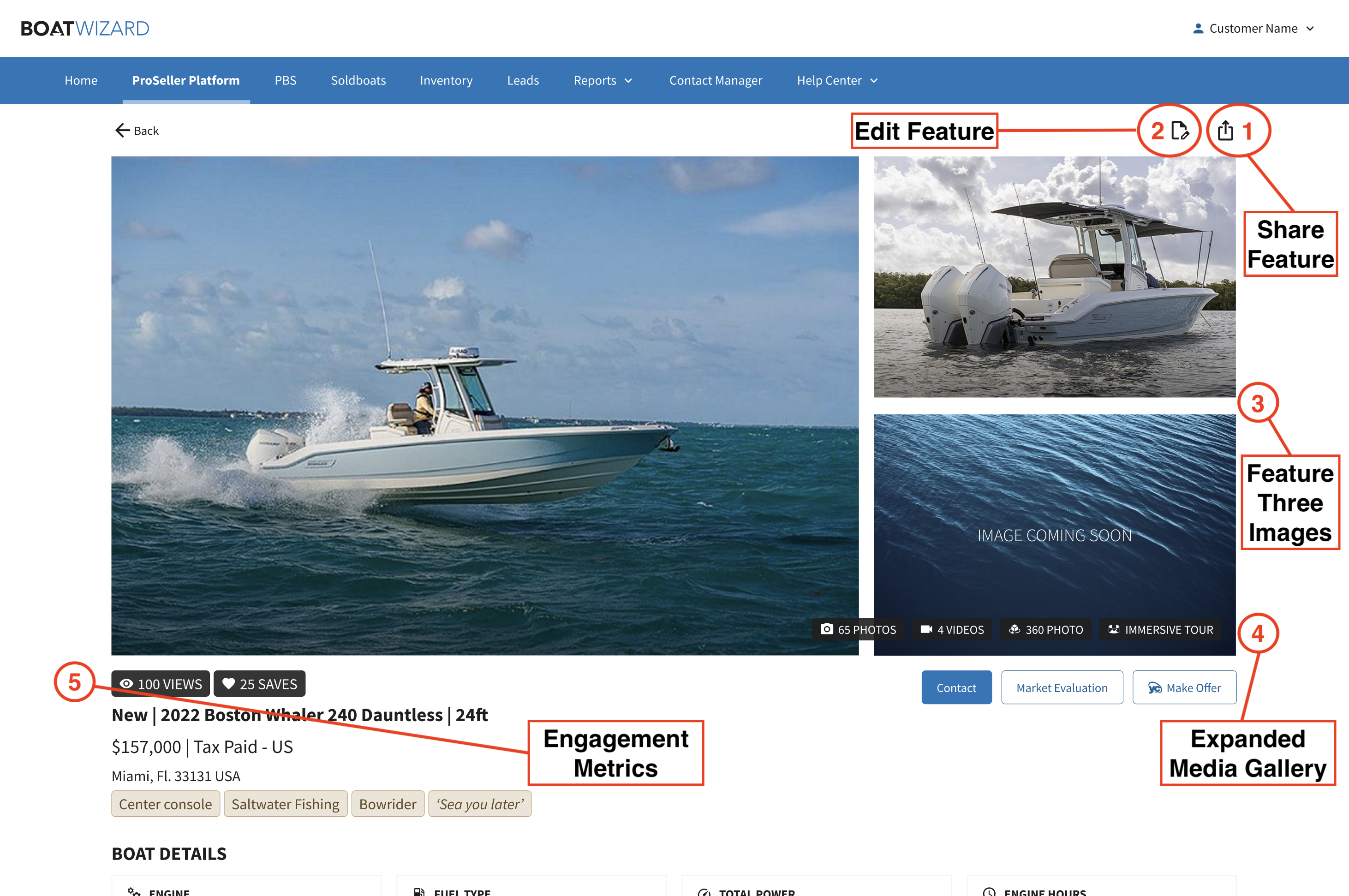
1. Enhanced Sharing Experience
This is the biggest workflow improvement in the refresh. Clicking the Share icon now opens all sharing options in one convenient place.
| Option |
What It Does |
Best Used When... |
|---|---|---|
| Share via Link |
Generates a clean, mobile-friendly URL. Your contact information appears on the page the buyer sees, so they always know who to reach.
|
Sending a quick link to a buyer by text or email |
| Opens a refreshed email modal. You can attach the listing's print brochure directly before sending. | Formal outreach, or when sending the brochure alongside the listing | |
| Message | Opens a modal to send a message directly to the broker on the listing. | Reaching the listing broker quickly |
|
Opens the Print Brochures app. Select a template, choose photos, and optionally include a QR code that links buyers back to the listing. Note: the layout shown is a template example, not a live preview of the final brochure. |
In-person meetings or boat shows | |
| Export | Downloads the listing as a CSV file. To export multiple listings at once, use Export from the Search Results page. | Reporting, admin, or data requests |
| More Options | Opens your device's native share sheet (e.g., AirDrop, messaging apps). Appearance varies between desktop and mobile. | Sharing natively through your device |
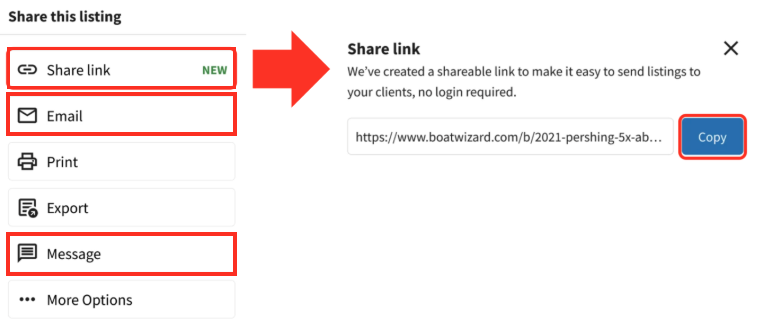
Share via Link replaces the old QR share page. The new link is cleaner, more mobile-friendly, and displays your contact information so buyers always know who to reach.
2. Edit Listing Access
A new Edit icon at the top of the Boat Detail Page opens your listing directly in Inventory in a new tab. Make your changes, save, and return to the ProSeller Platform without losing your place.
This icon is only visible to users with the appropriate listing permissions. If you don't see it, check with your administrator about your access.
3. Featured Image Display
The listing now leads with up to three prominent photos instead of one, giving your listings a stronger visual presence from the moment a potential buyer lands on the page. If fewer than three images are available, an "Image Coming Soon" placeholder will appear.
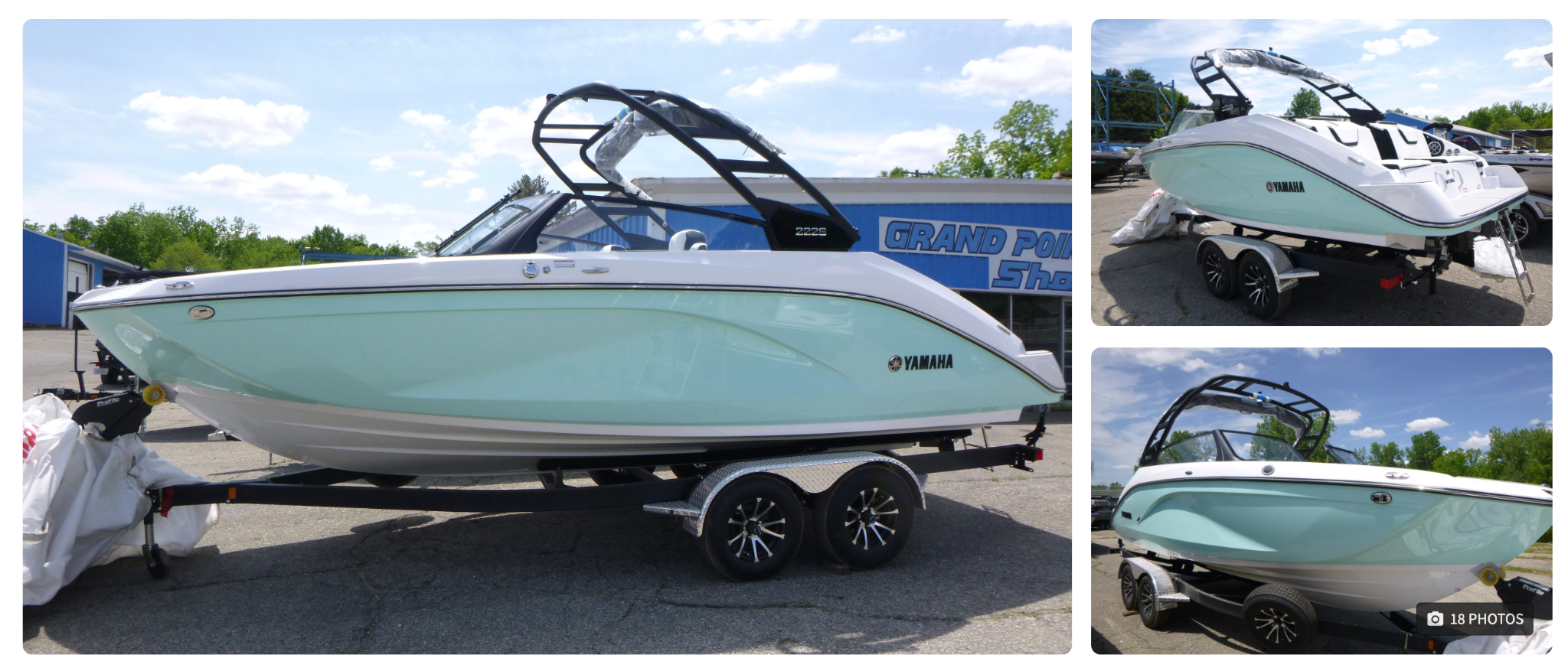
Tip: Make sure your best shots are uploaded and ordered first , they're the first buyers see.
4. Expanded Media Gallery
The gallery now displays all available media types with counts, including:
- Photos (with count)
- Videos (with count)
- 360 Photos (if available)
- Immersive Tours (if available)
Clicking any image opens the full gallery experience. The more media types you have uploaded, the more confidence buyers build before a showing.
5. Engagement Metrics
Views and Saves counts are now visible directly on the listing, sourced from the same data as your analytics reports. These metrics only appear when data is available, so a brand new or low-traffic listing may not display them yet.

Tip: Use Views and Saves to show buyer interest to a seller, or as market feedback in a pricing conversation.
Portal Visibility
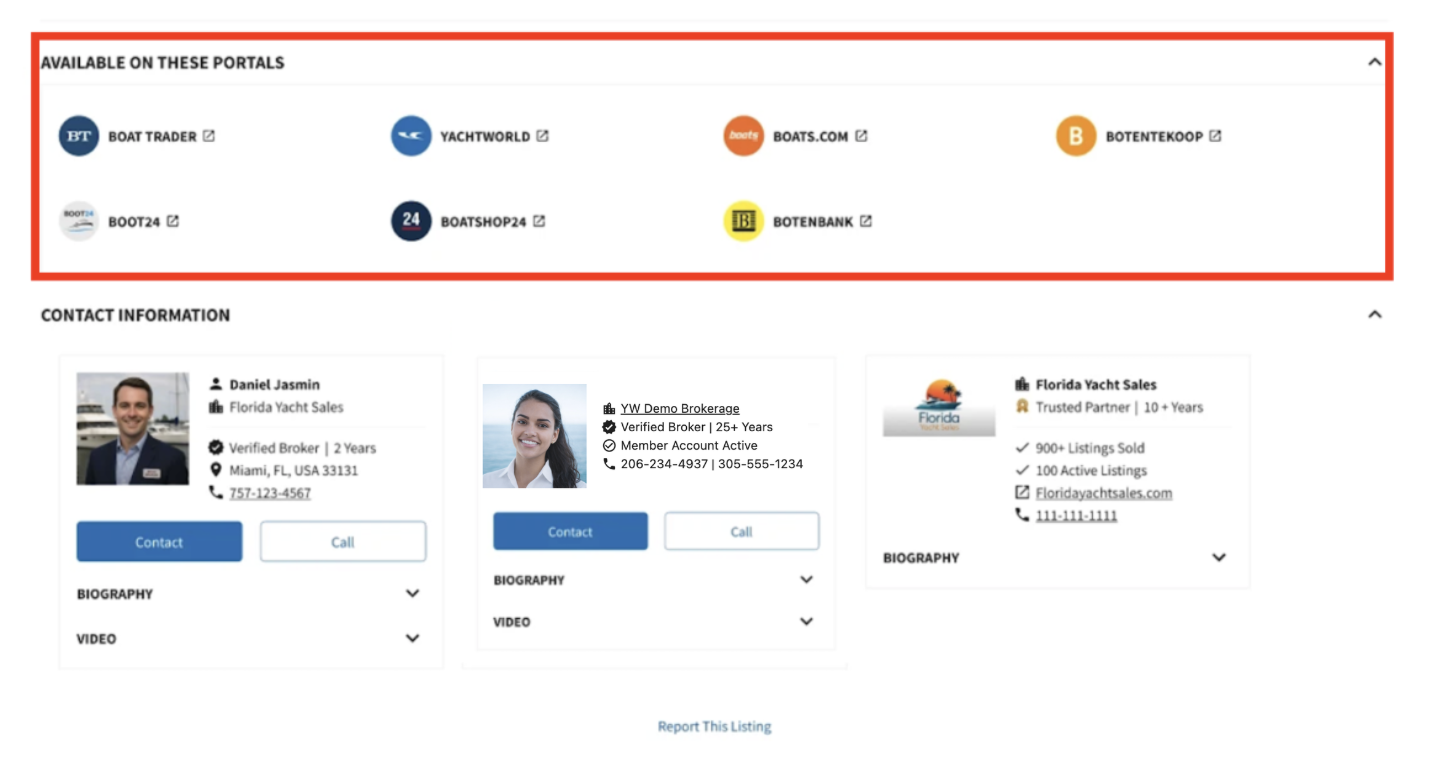
A new "Portals Available On" section shows exactly which portals your listing is currently live on, with direct links to each. No more manually searching across portals to verify visibility.
Use this as a quick confidence check before or after a client conversation to make sure everything looks right on the public side.
Multi-Broker Support
Listings now display up to two brokers with full contact information. If you're co-brokering, both brokers are shown on the listing so buyers can reach the right person directly.
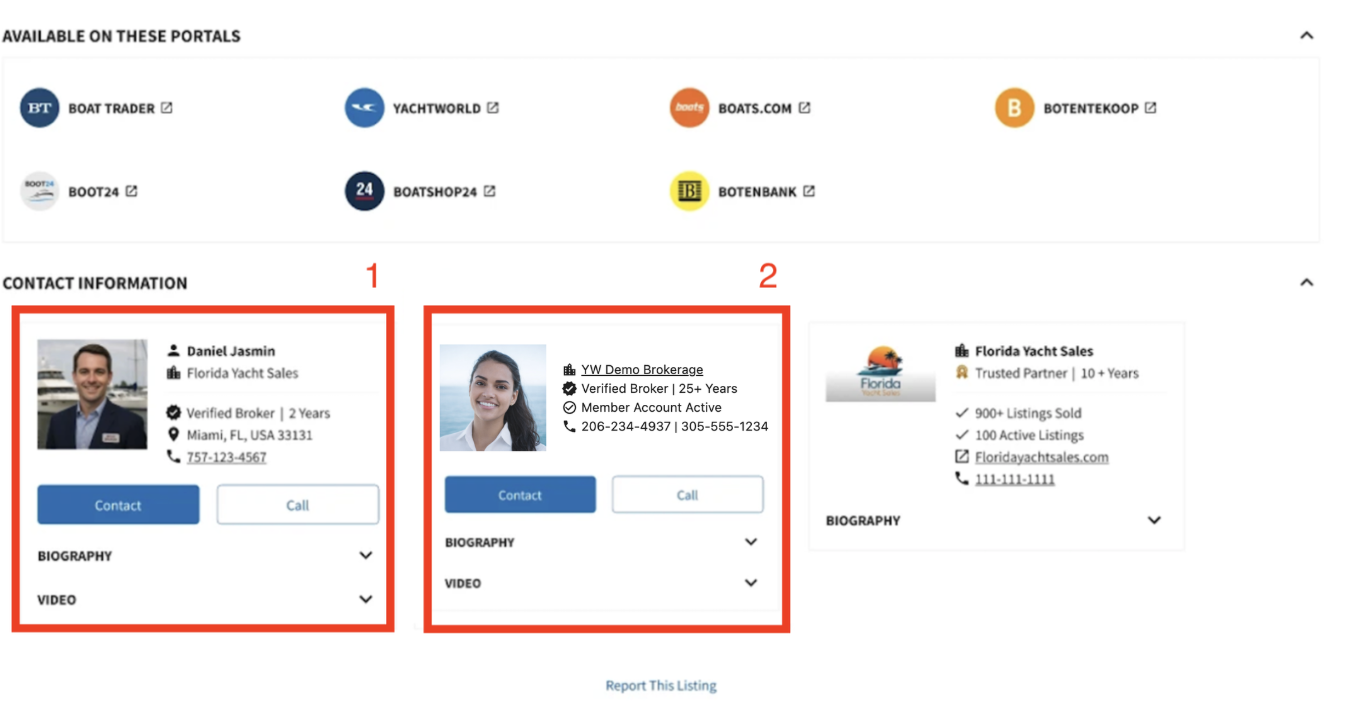
Broker display is separate from editing permissions. Both brokers can be shown on the listing, but editing access is still controlled by permissions in Inventory, same as before.
Reporting a Listing
A "Report This Listing" button is now available at the bottom of every listing. If you come across a listing that violates policy — for example, text overlaid on photos — use this button to submit a report. A policy representative will follow up.
Frequently Asked Questions
| What happened to the old QR share page? | Share via Link replaces it. The new link is cleaner, more mobile-friendly, and displays your contact information so buyers always know who to reach. |
| Why don't I see Views or Saves on my listing? | Metrics only appear when there is data to show. A new or low-traffic listing may not display these tags yet — this is expected behavior, not a bug. |
| Why can't I see the Edit icon? | The Edit icon is only visible to users with the appropriate listing permissions. If you don't see it, your permissions may need to be reviewed in Inventory. Contact your administrator or Account Manager. |
| Does the Print modal show me a live preview of my brochure? | No. The layout shown in the Print modal is a template example only, not a live preview. The final brochure is generated when you print or export it. |
| Can I export multiple listings at once? | Yes. Go to the Search Results page, select multiple listings, and use Export from there. The Export option on the Boat Detail Page is for individual listings only. |
| If two brokers are on a listing, can both edit it? | Broker display and editing permissions are managed separately. Both brokers can be displayed on the listing, but editing access is still controlled by permissions in Inventory — the same as before. |
If you have additional questions, please contact your Account Manager.