
Refreshed Search Results Page within the ProSeller Platform
The ProSeller Platform Search Results Page has been refreshed with a faster, more flexible experience for searching, viewing, and managing listings.
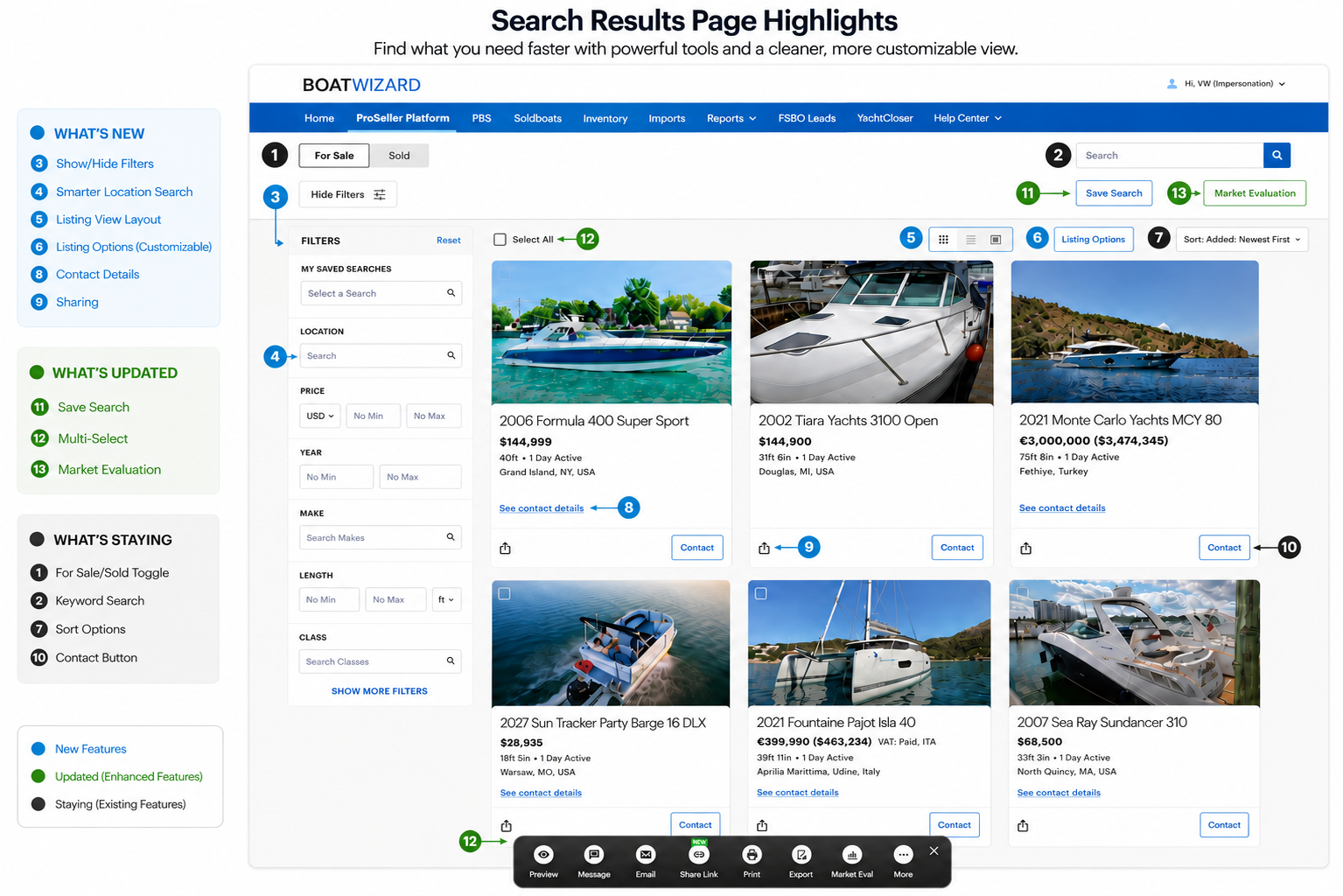
The updated layout includes several new tools that make it easier to find the listings you need, customize how listings are displayed, and take action on multiple listings all at once.
What’s New at a Glance
| Feature | What Changed? |
| Show/Hide Filters | New: Hide the filter panel to view more listings on the page. |
| Smarter Location Search | New: Search for regions, countries, states, or cities using a single location search filter that populates matching options as you type |
| Listing View Layout | New: Choose from three layouts to browse listings in the way that works best for you |
| Customizable Listing Cards | New: Customize listing cards with up to three key pieces of information |
| Contact Details | New: View primary broker contact information directly from listing cards |
| Share a Listing | New: Select multiple listings and share them in a single friendly share link |
| Save Search | Updated: Save searches with a name, client details, daily email notifications, and a default search option |
| Multi-Select | Updated: Take action on multiple listings at once, including preview, message, email, share, print, export, and more options |
| Market Evaluation | Updated: Use all available search filters to build a Market Evaluation |
| Make Model Filters | Updated: Make Model Filters have been combined into a single search filter |
Walkthrough Video
Step by Step Walkthrough
What’s New:
Show/Hide Filters
You can now choose whether to display the entire filter panel on the left side of the Search Results Page.
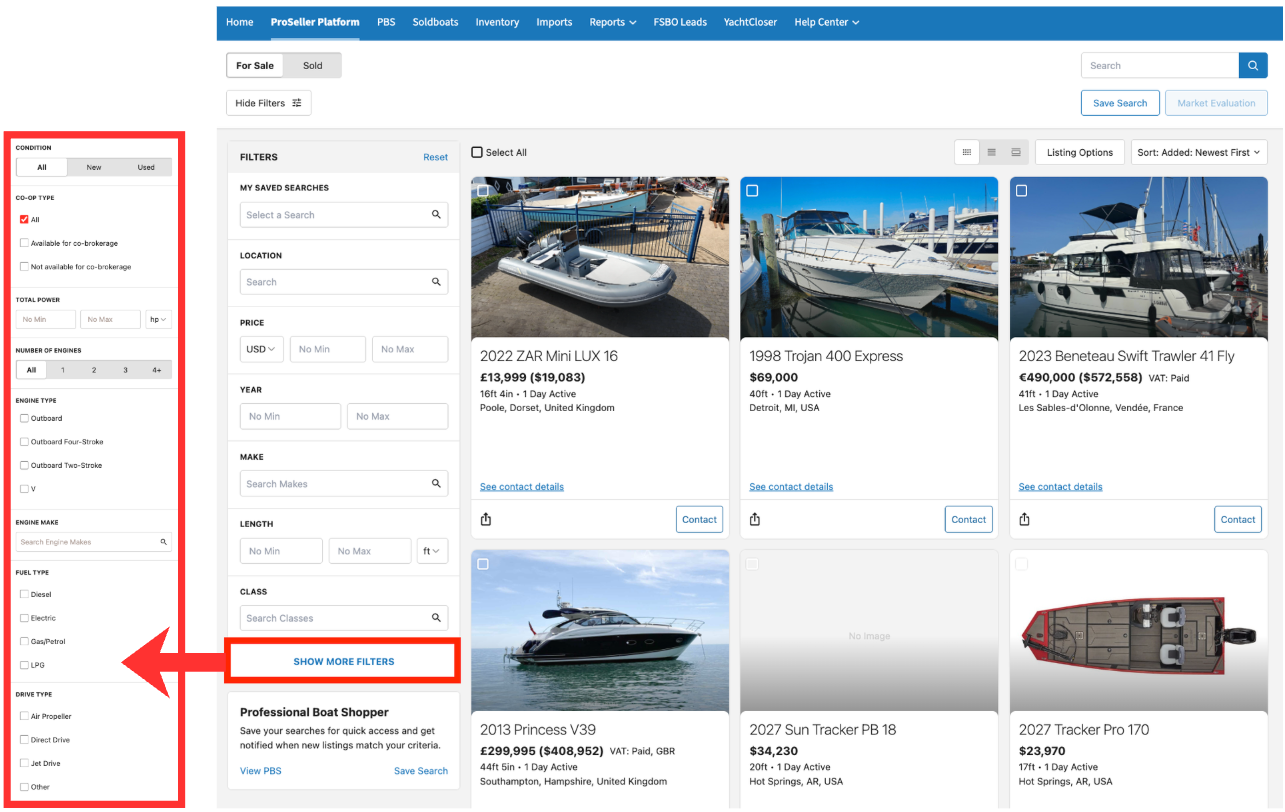
When filters are shown, your most commonly used filters appear first, with Show More
Filters available for additional options. Clicking Show More will drop down specific details like condition, number of engines, total power, fuel type, etc.
To hide filters, click on the Hide Filters button at the top left of the page. This will generate a quick filters panel that will populate right next to the button with make, model, length, year, location, and price filters.
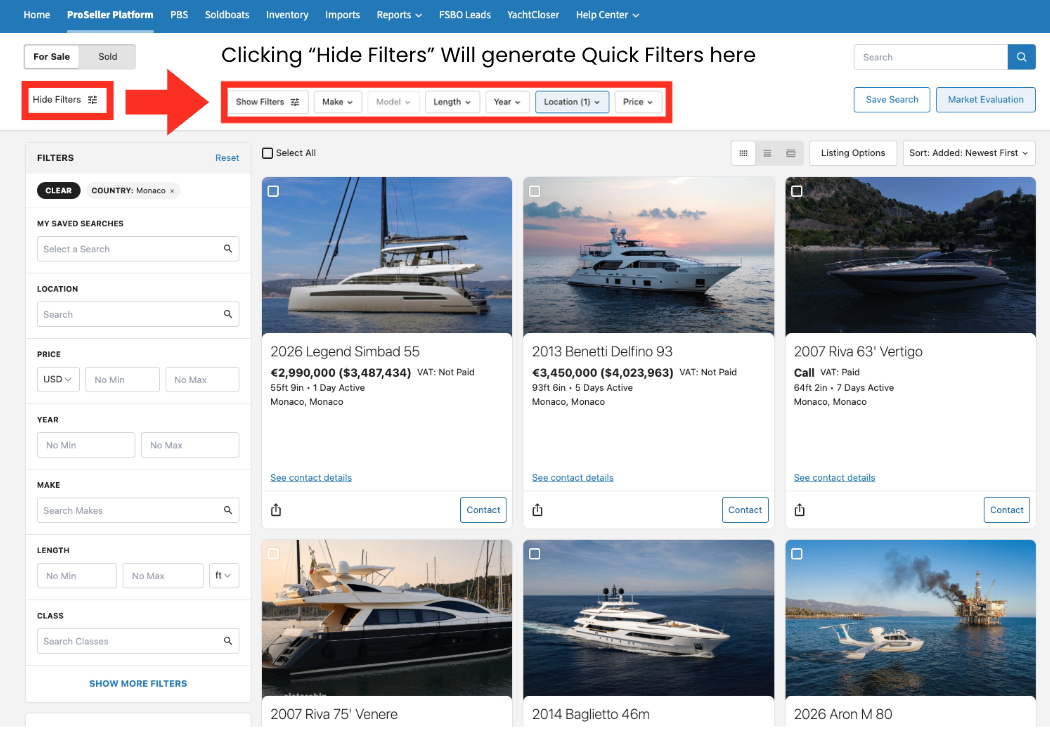
Tip: Hide the filters to see more listings per row.
Smarter Location Search
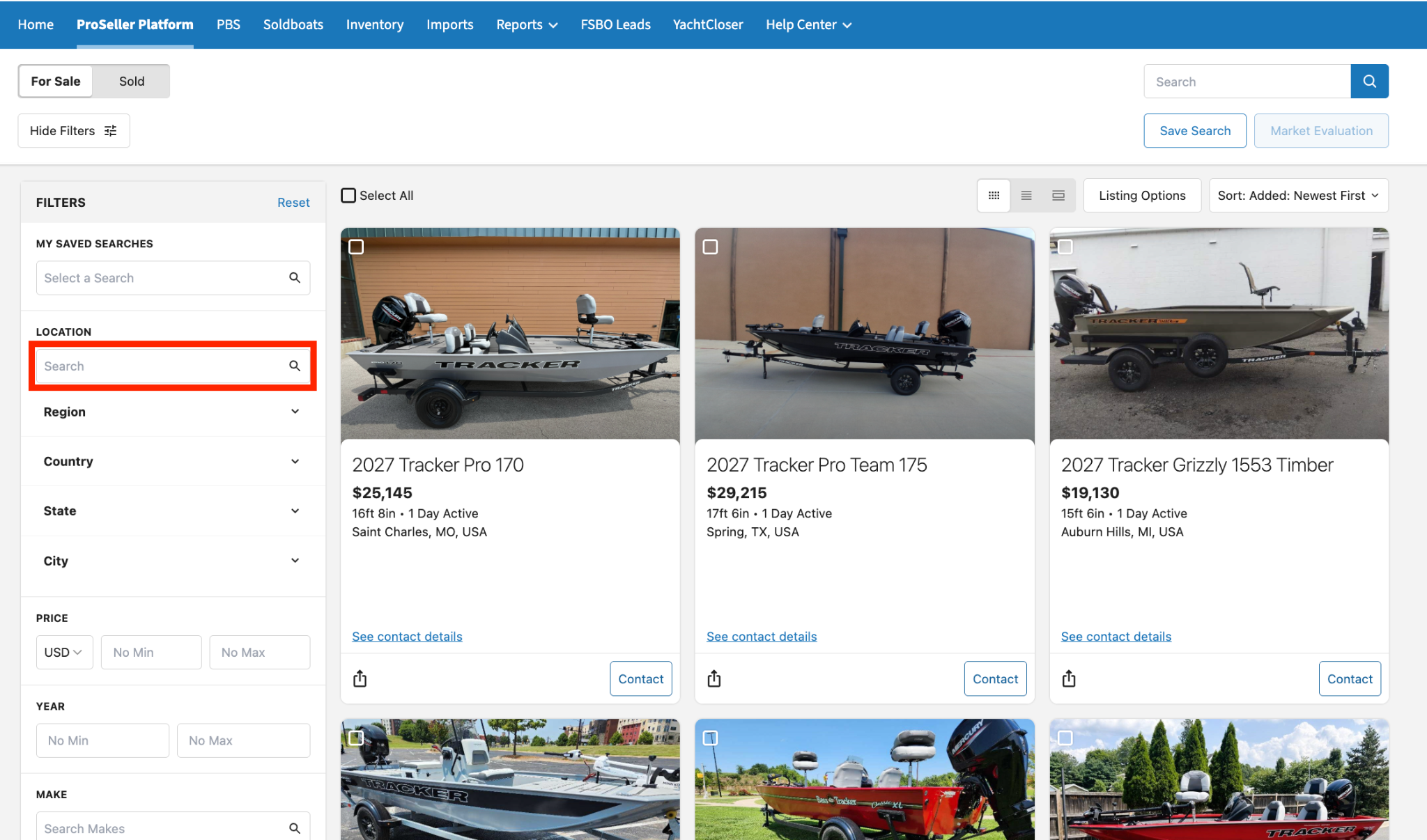
Location search is now easier with a single type-ahead filter. Start typing a city, state, country, or region in the Location search bar under Filters, and matching options will appear as you type.
Listing View Layout
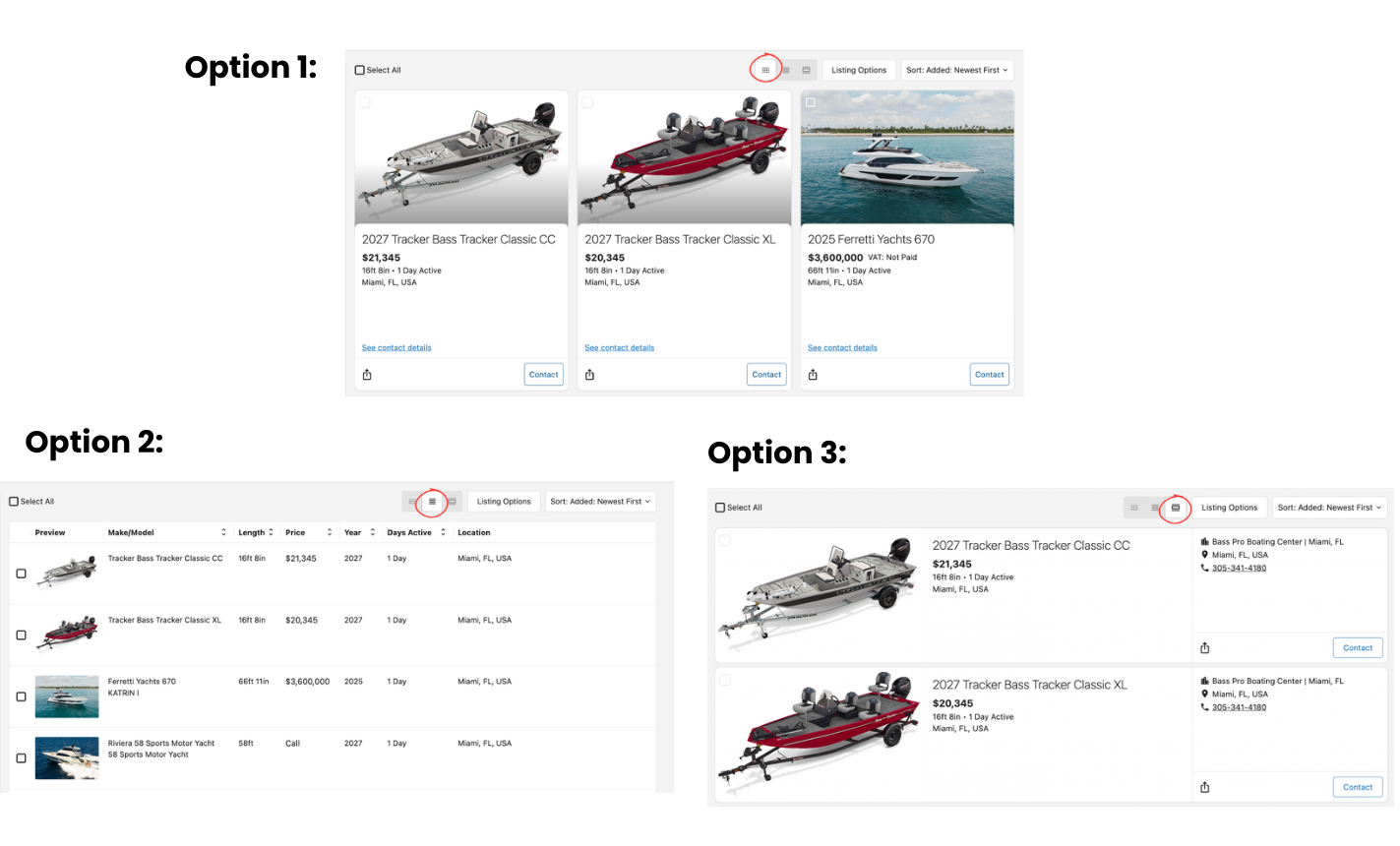
You can now choose from three different ways to view listings:
- Grid View - See more listings cards on the page at once for faster browsing
- List View - Browse listings in a streamlined list format
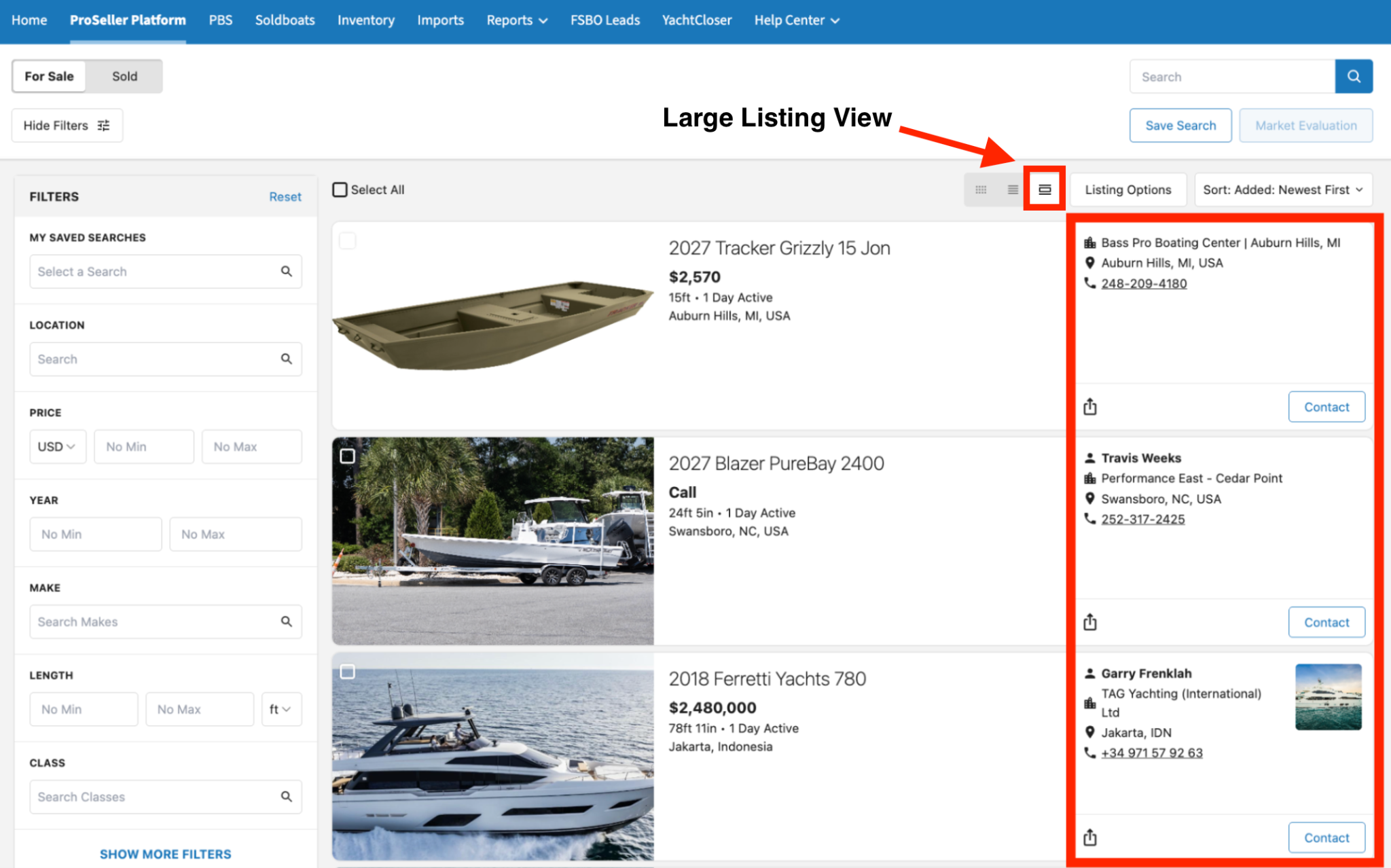
- Large Listing View - See larger listing cards with more of the broker’s information, similar to the previous classic view
Select your preferred grid view at the top right of the Search Results Page, located by listing options.
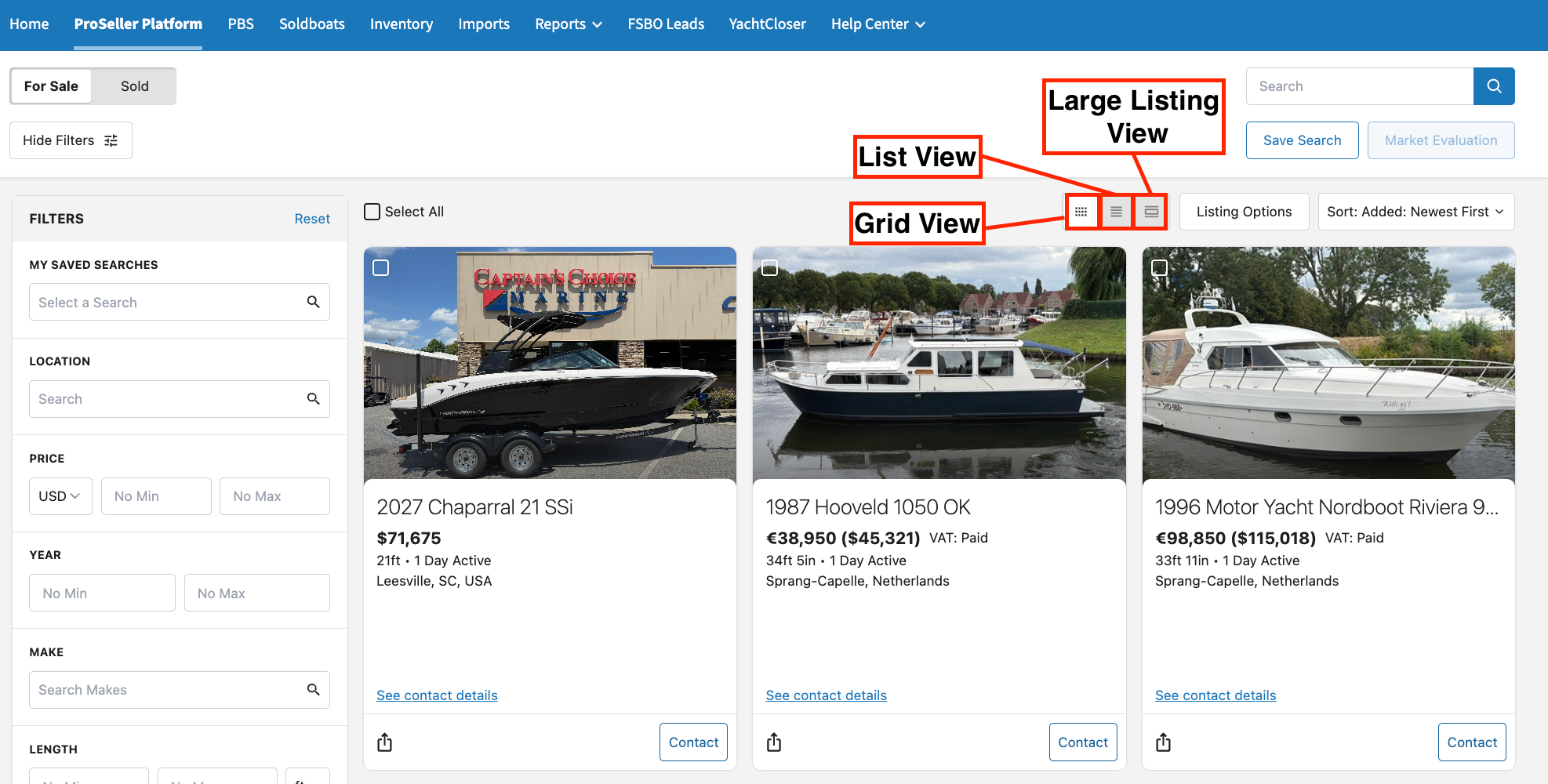
Each view is designed for a different way of working. You can switch between them depending on what you need.
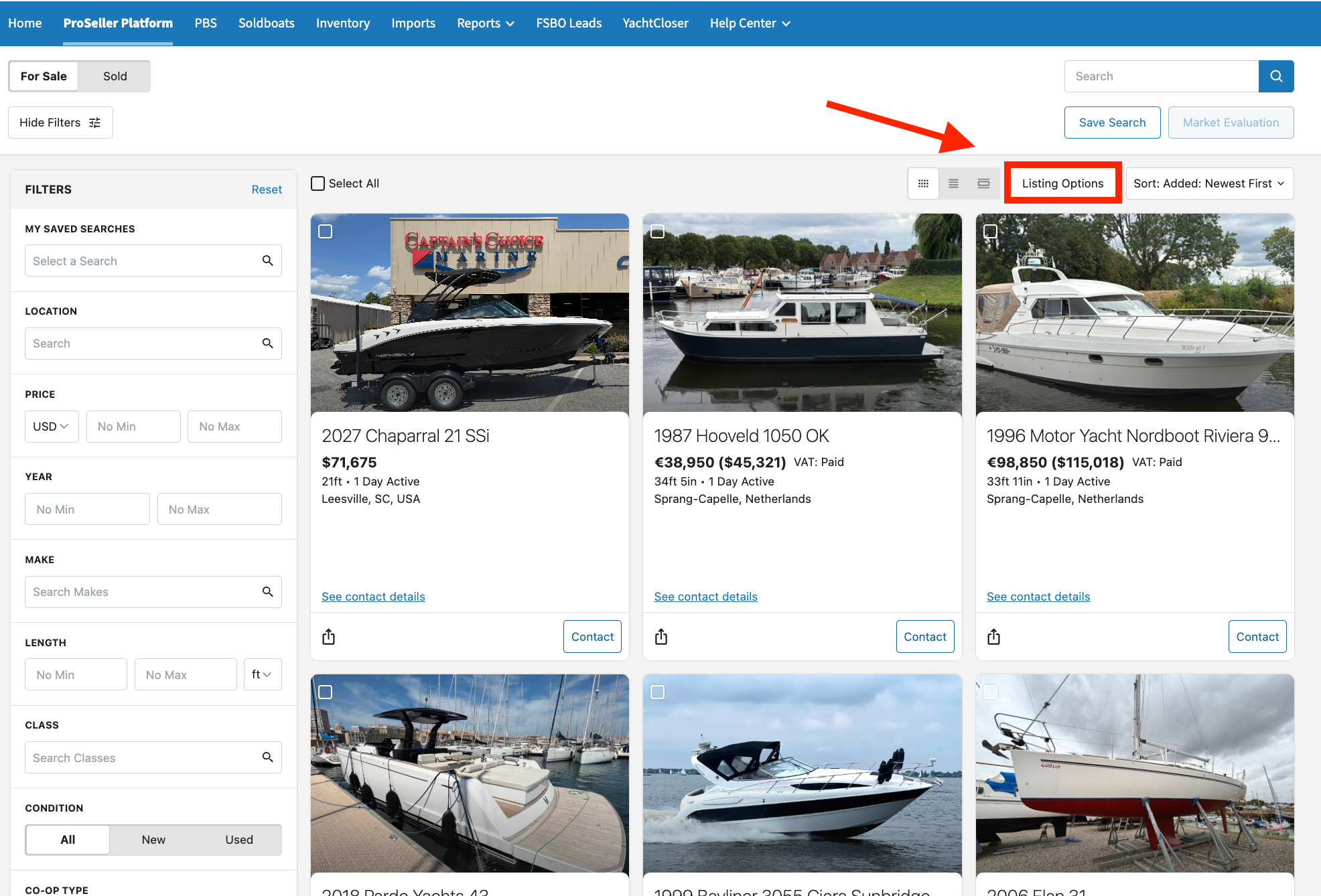
Customizable Listing Options
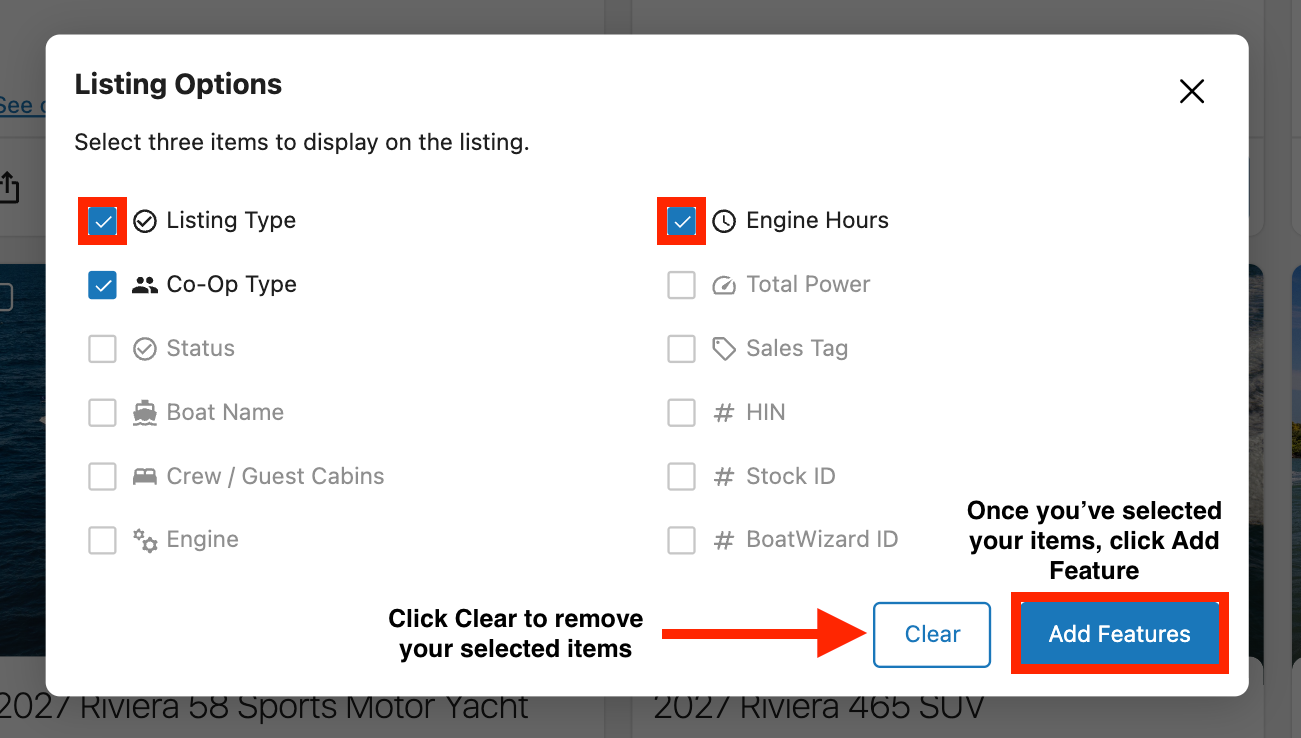
With Listing Options, you can choose up to three items to display on each listing card to showcase the information that matters the most to you.
- Click on the Listing Options button at the top right of the Search Results Page
- Check off your desired items and click Add Features
Contact Details within the Listing
In Grid View, select See Contact Details on a listing card to view the primary broker’s contact information. If the listing broker has a profile picture saved, it will also appear on the listing card.
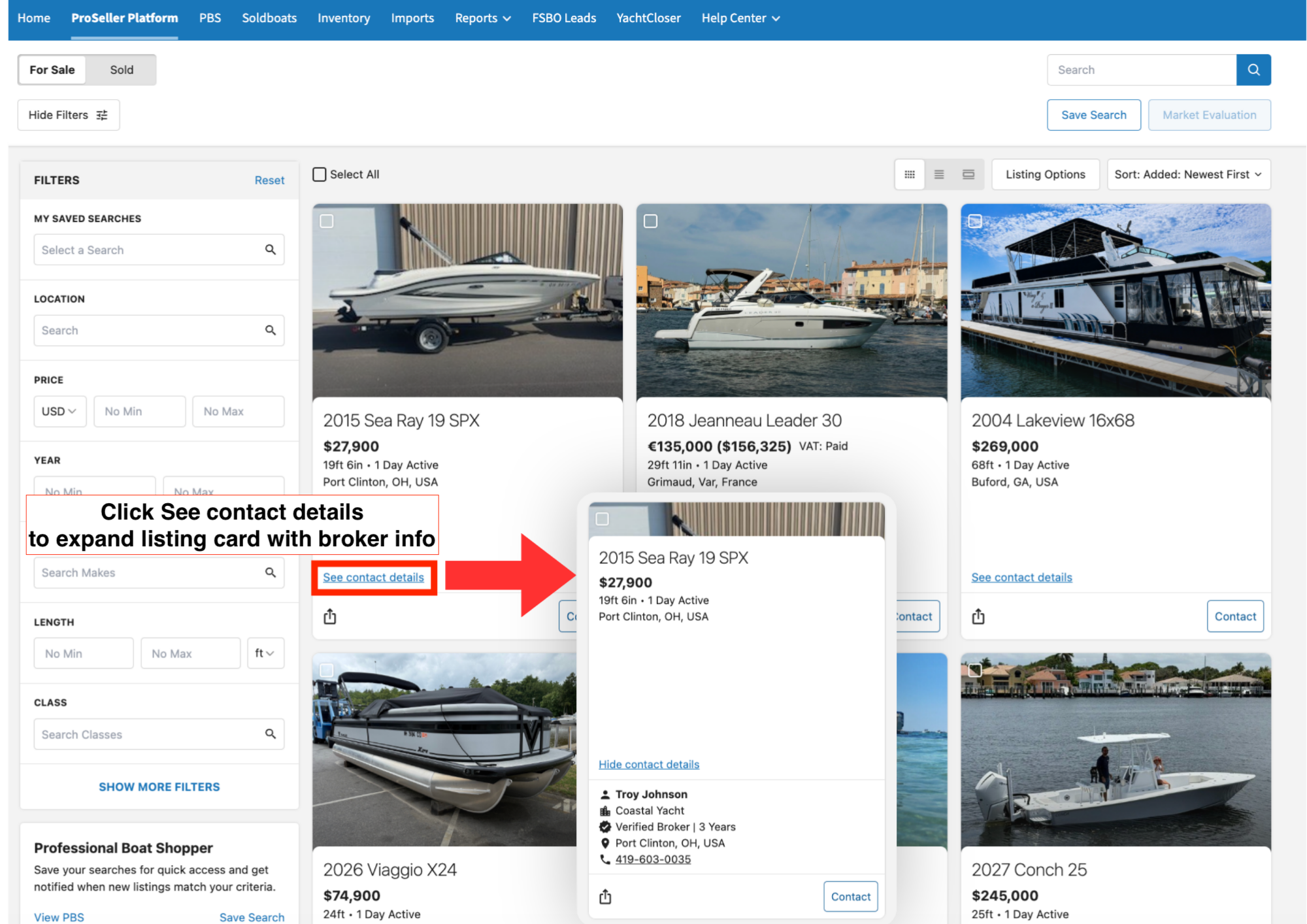
Select Hide Contact Details to close the information.
If you prefer to have the contact information visible at all times, use the Large Listing View, where contact information is automatically displayed on each listing.
Share a Listing
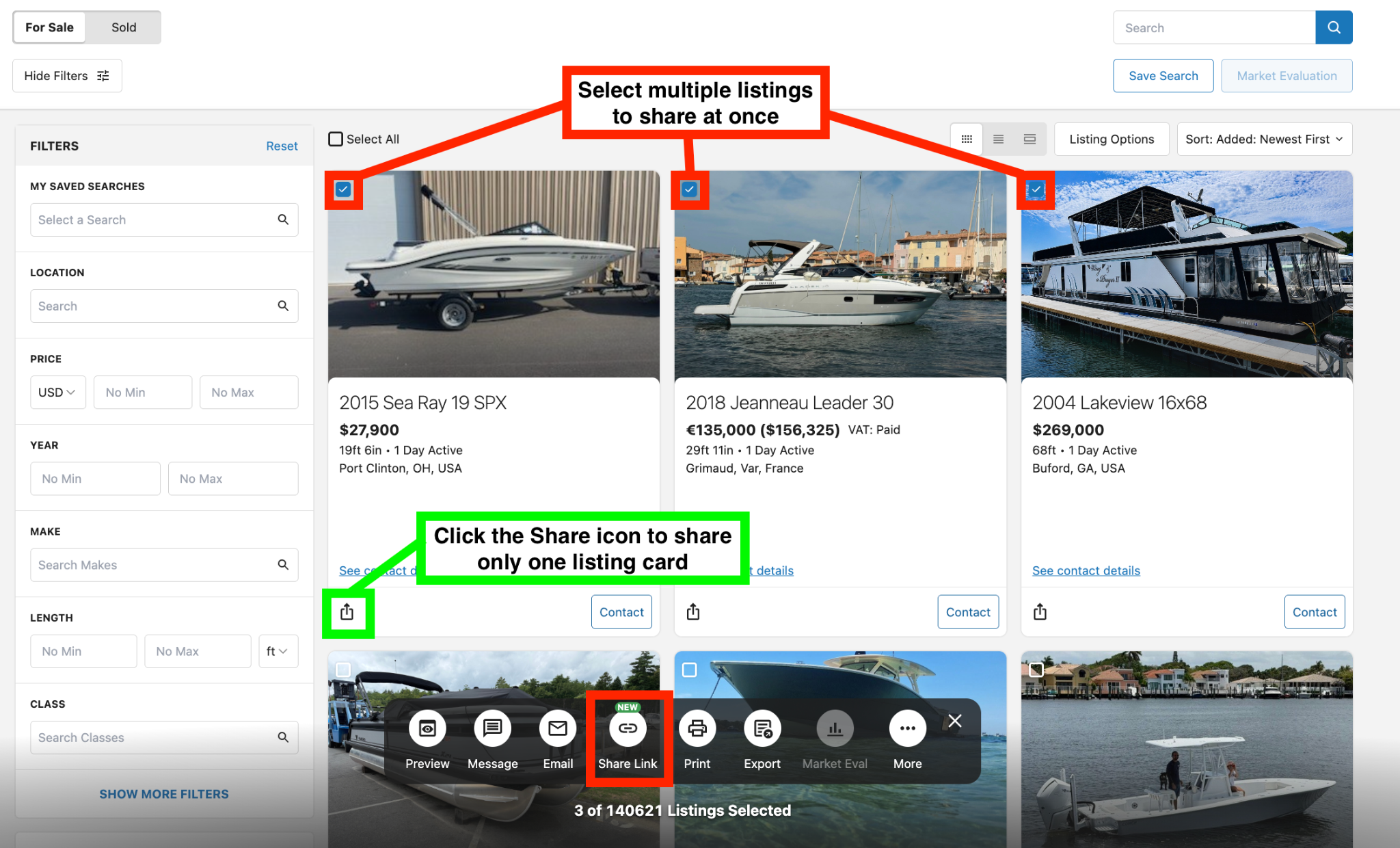
You can now easily share listings directly from the Search Results Page. Select the Share icon on a listing card to open the sharing options. You can also select multiple listings and share them together using a single share link.
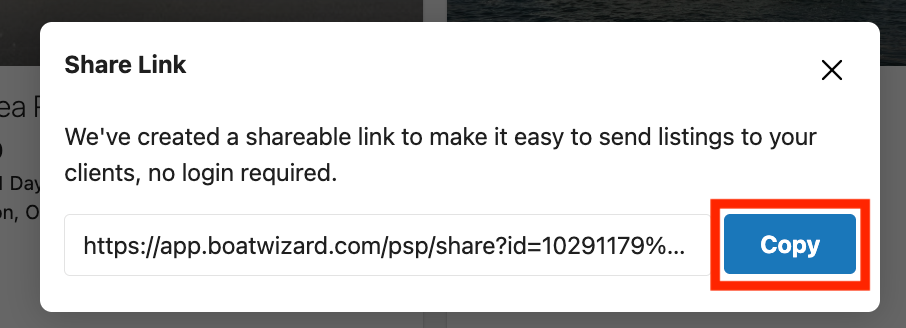
The share link provides a simple way to send listings to your clients without creating a large email attachment, and your contact information is included with the listings.
- Select the listings you’d like to create a singular share link for
- Click Share Link on the modular that generates below
- Click Copy to generate a shareable link.
Updated Features
Save Search
Save searches so you can quickly return to them later. When you select Save Search, you can:
- Give the search a Name
- Add optional Client Details like name, email, and phone number
- Turn on a Receive email alerts for new matching listings
- Toggle Set as default search to automatically apply this search when you open the ProSeller Platform
Tip: Save a search under your client’s name, turn on the daily email, and set your most frequently used search as your default to streamline your workflow
Multi-Select
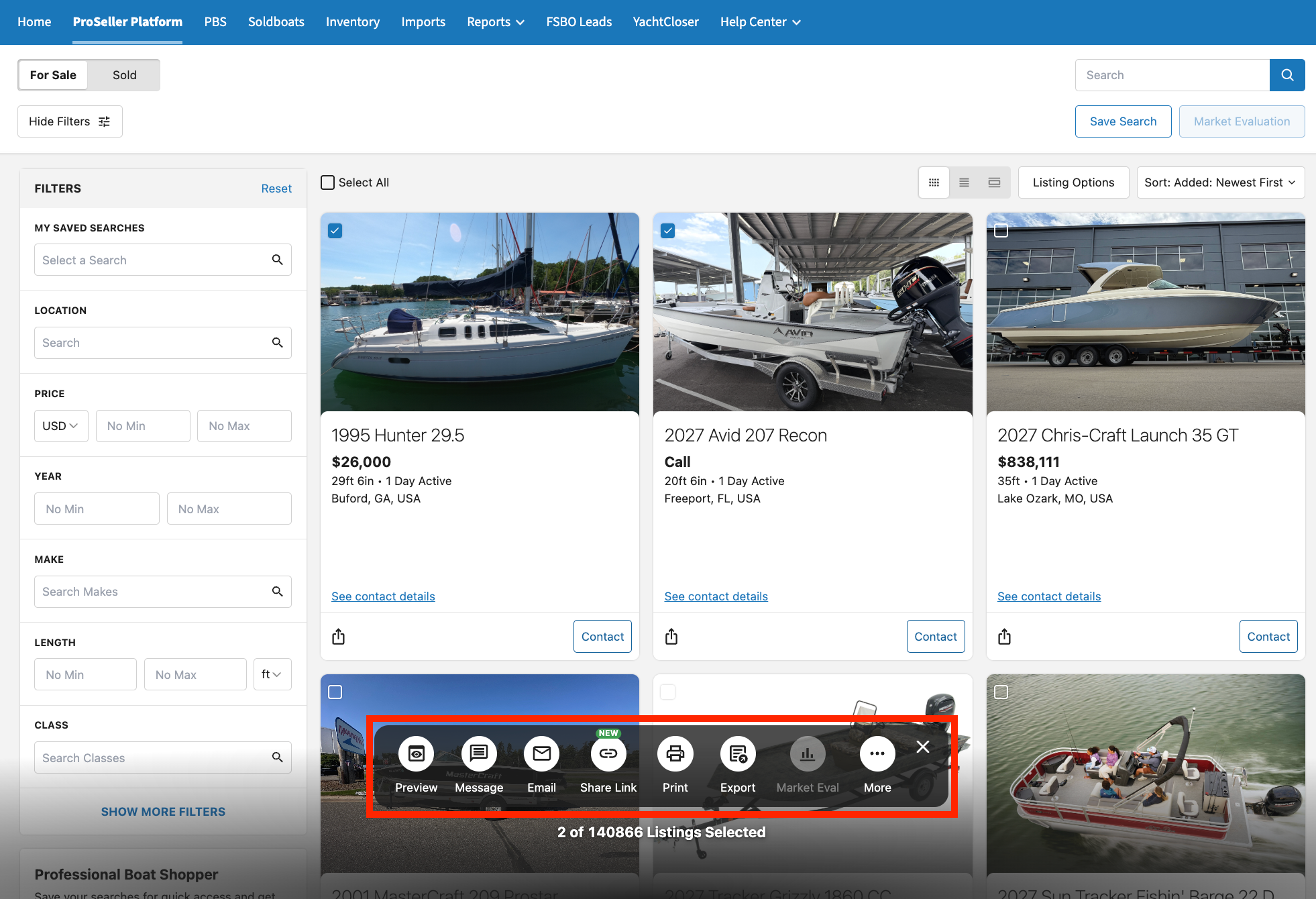
You can now select multiple listings and perform actions on them at the same time. Checking the box on the top left of multiple listing cards will generate a Share listing bar at the bottom of the page. Depending on the action, you can select listings to:
- Preview - Up to 100 listings
- Message - Up to 30 listings
- Email - Up to 30 listings
- Share via Link - Up to 100 listings
- Print - Up to 100 listings
- Export - Up to 100 listings
Market Evaluation
You will only have access to this tool if you're an AdvantageSelect member.
Market Evaluation has been updated to make it easier to build comparisons based on your search criteria.
Instead of relying only on Year, Make, Model, and Price, Market Evaluation now uses all applicable filters from your search.
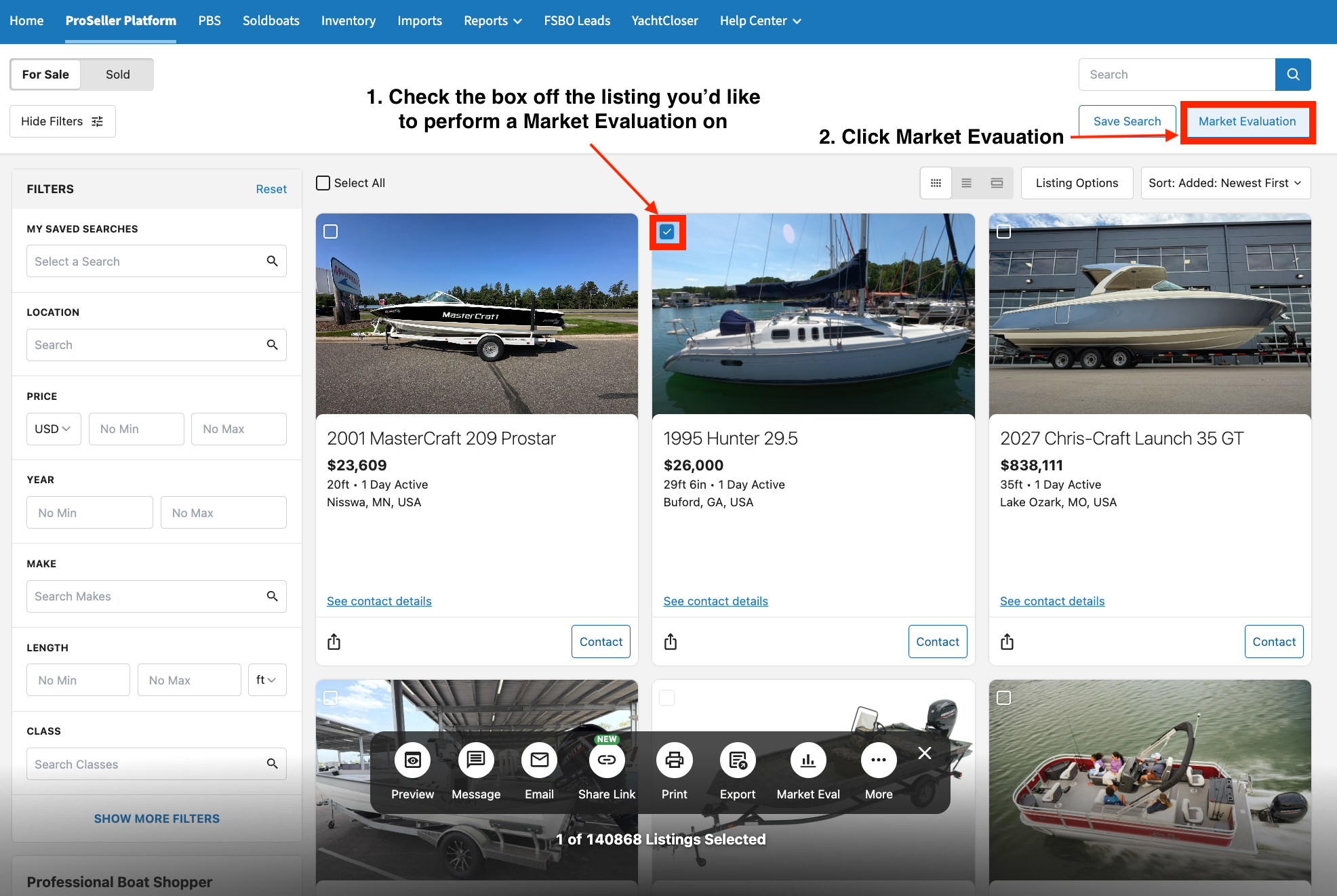
Once you’ve applied your desired filters, select the checked box off a listing card and navigate to the Market Evaluation button at the top right of the page to generate results based on your search criteria.
The evaluation now opens in a modal directly within the Search Results Page rather than taking you to a separate page.
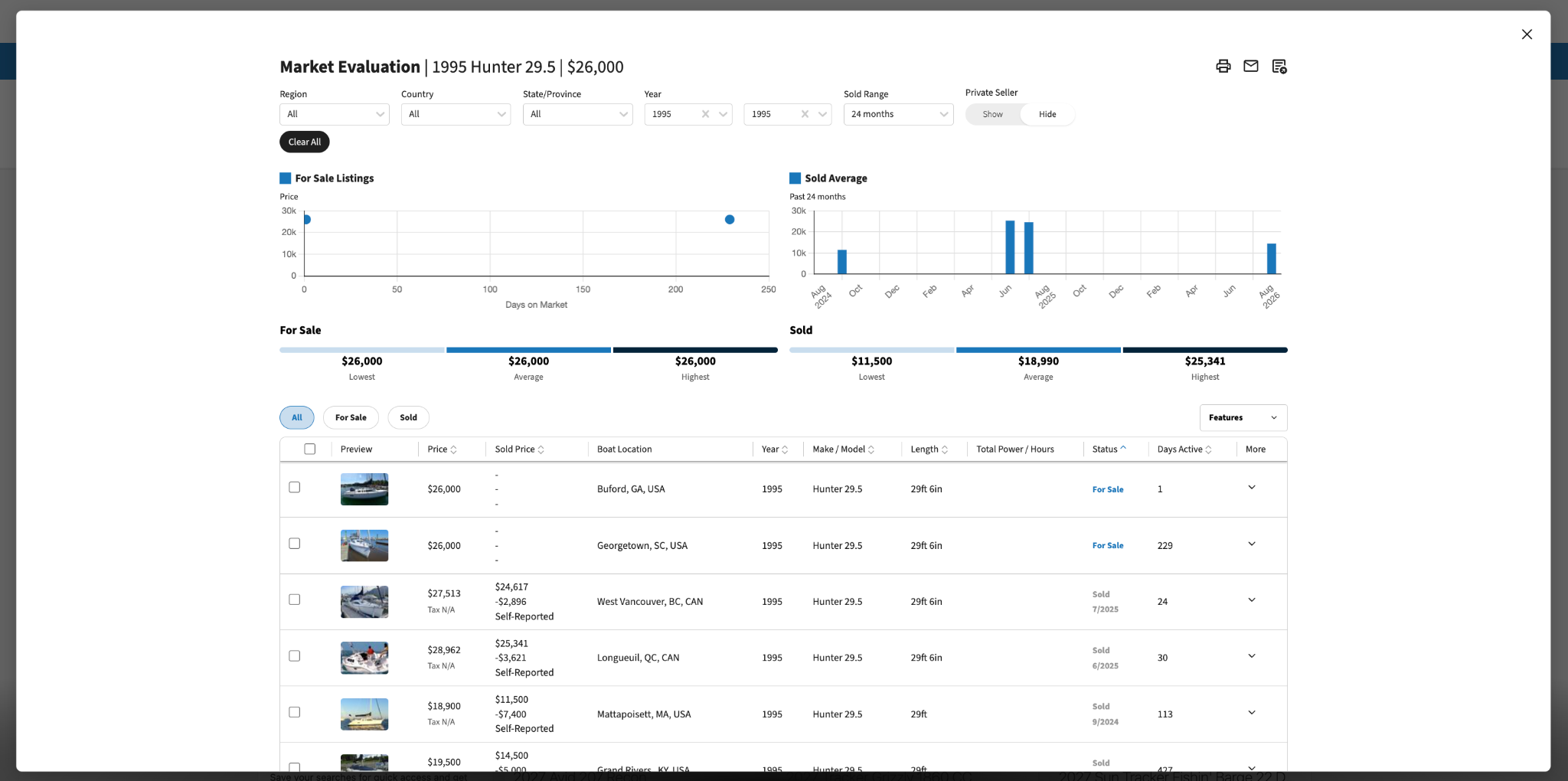
Tip: The more specific your filters, the more targeted your Market Evaluation results can be.
The refreshed Search Results Page gives you more control over how you search and view inventory—while making it easier to manage, evaluate, and share listings with your clients.
If you have any questions, please contact your Account Manager.