
Digital Basics: Quick How-To Guides
This guide covers a few simple features that can make browsing easier and help troubleshoot common issues.
How to Refresh a Page on Google Chrome
Please see a walkthrough tutorial below, followed with a step-by-step guide:
- Click the Refresh Arrow at the top left of your Google Chrome page.
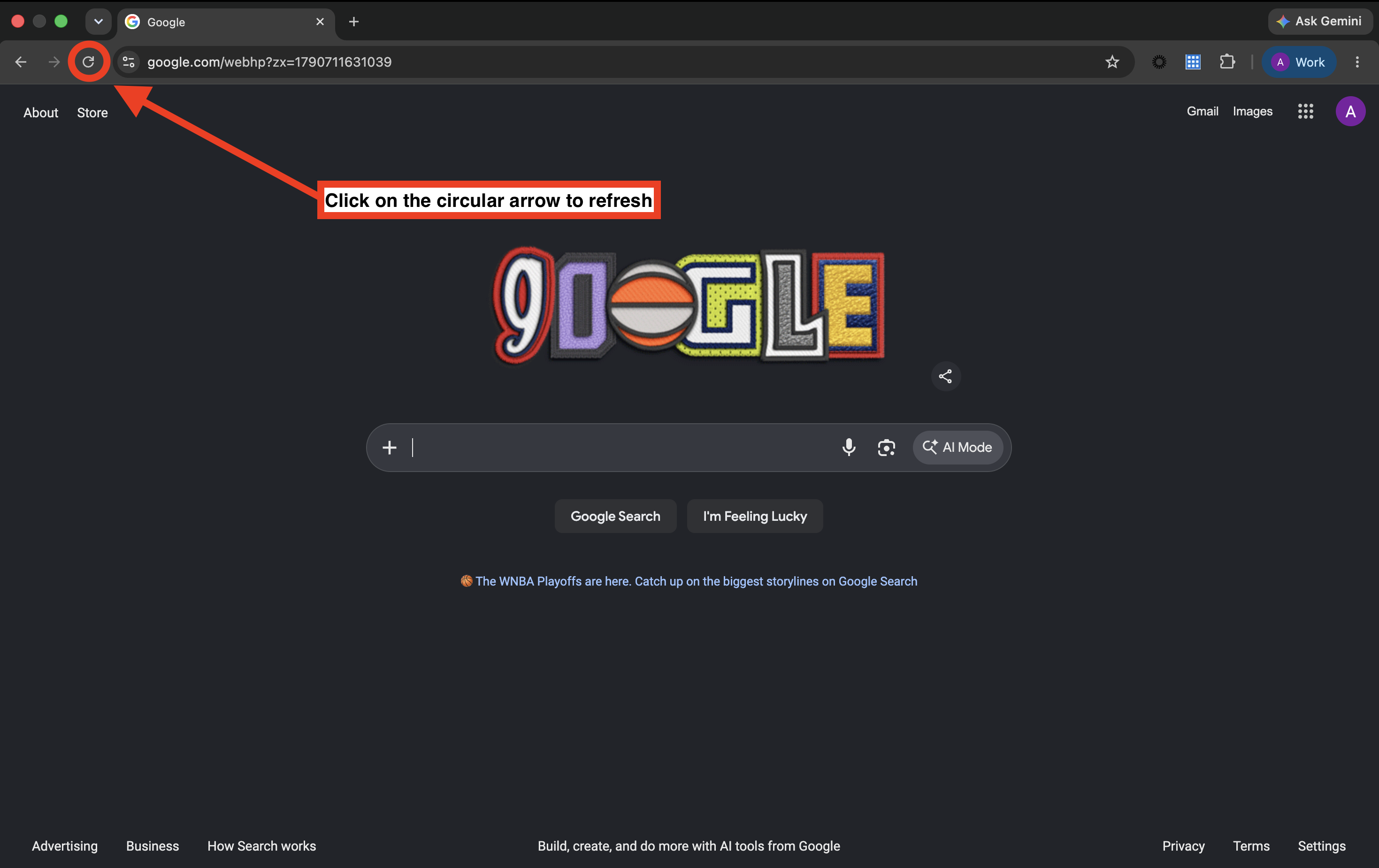
A white flash confirms the page has refreshed. Refreshing only affects your current page, other tabs will not be affected.
How to Clear Your Cache and Cookies in Google Chrome
Please see a walkthrough tutorial below, followed with a step-by-step guide:
Clearing your browser’s cookies and cache can help resolve issues with pages not loading or displaying the most up-to-date information. It can also be a helpful troubleshooting step if you’re seeing outdated listing information or search results.
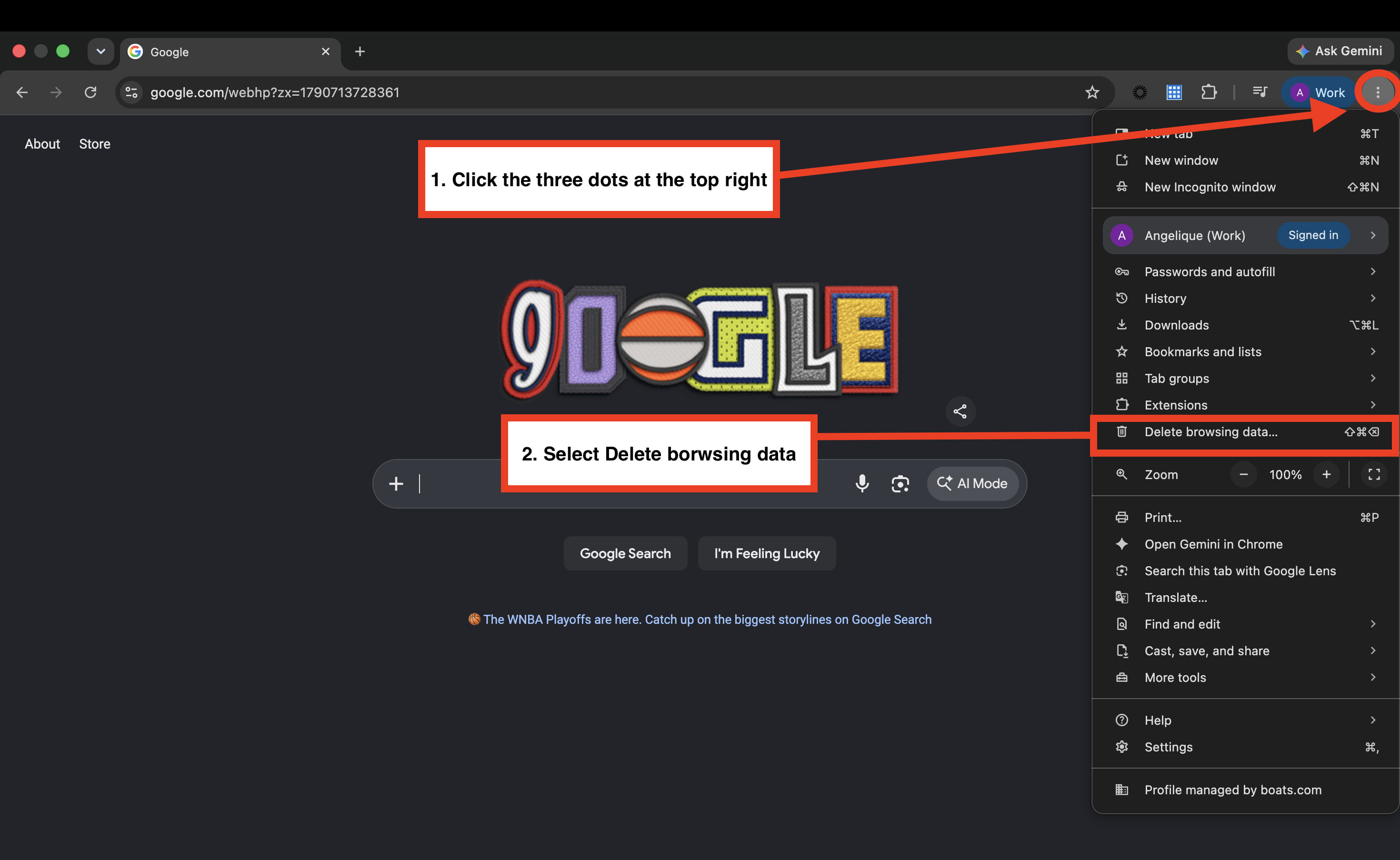
- Click the three dots (⋮) in the top-right corner of your Google Chrome browser.
- Select Delete browsing data.
- Select Last 24 hours and check the boxes for Cookies and other site data and Cached images and files.
- Click Delete data.
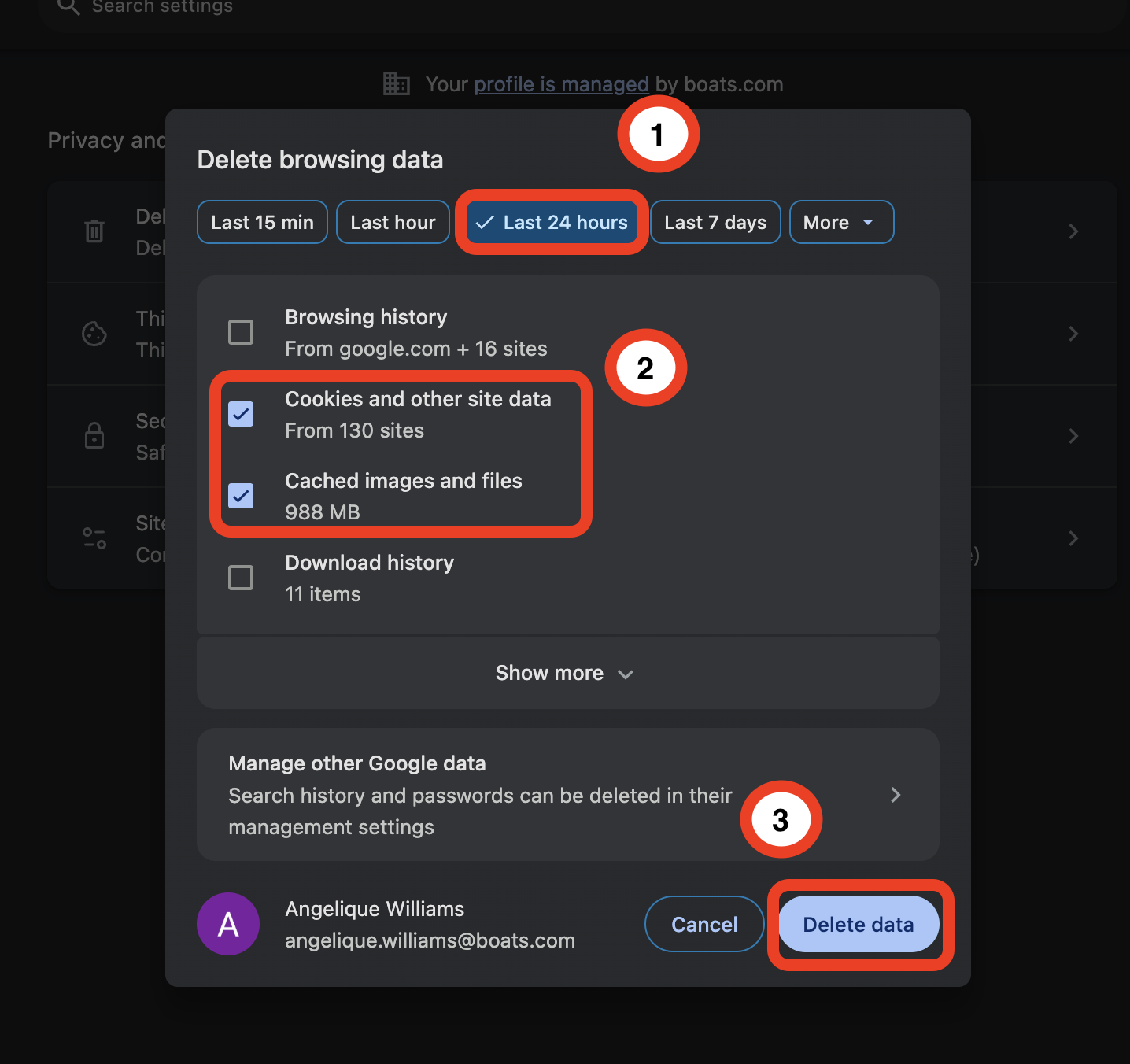
After clearing your cookies and cache, close and reopen your browser before trying your search again.
How to Zoom In or Out in Google Chrome
Please see a walkthrough tutorial below, followed with a step-by-step guide:
Adjusting your browser zoom can make text, images, and other content easier to view. Follow these steps to adjust your current zoom settings:
- Click the three dots (⋮) in the top-right corner of your Google Chrome browser.
- Next to Zoom, click + to zoom in and make content larger, or − to zoom out and make content smaller.
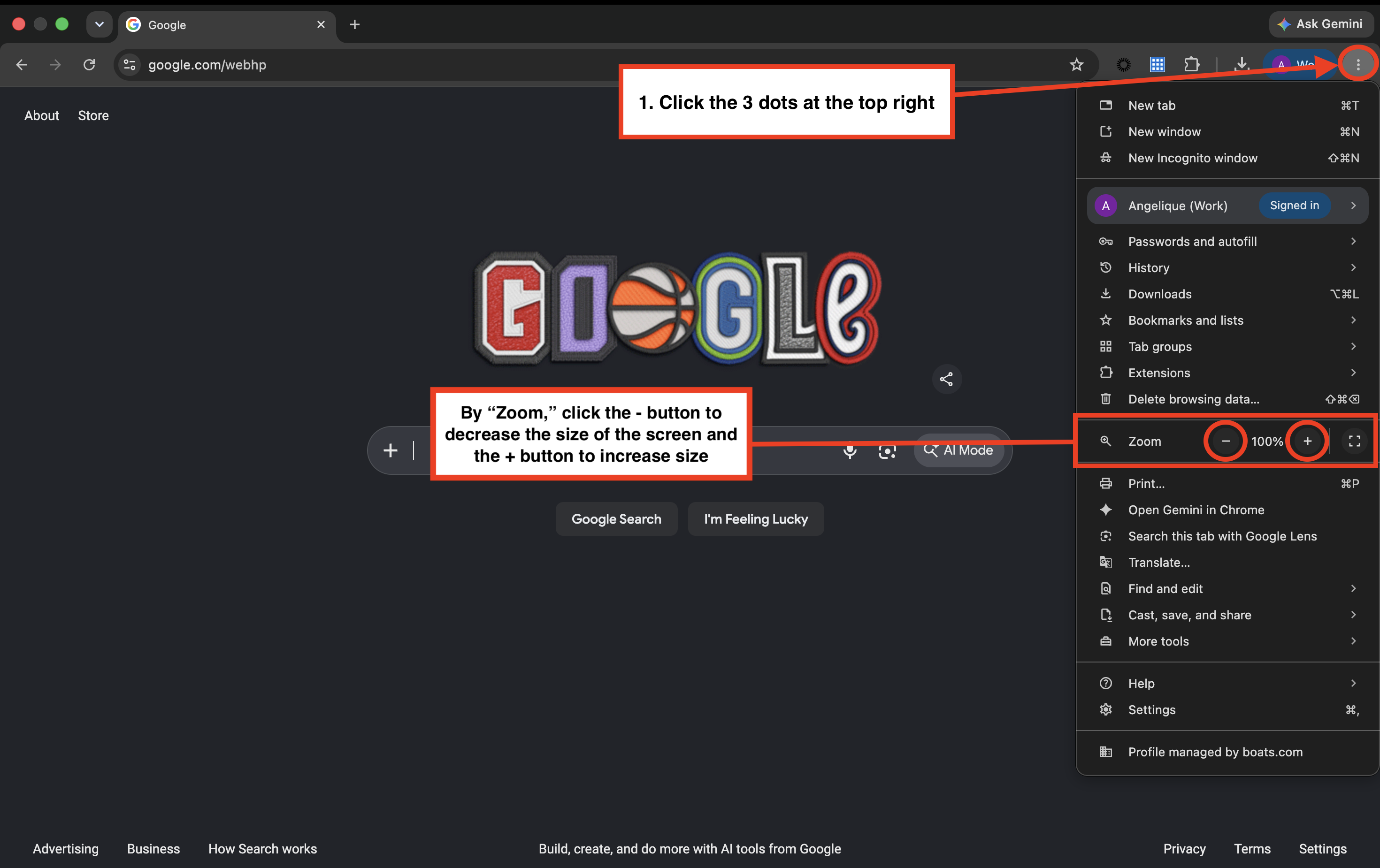
Tip: The zoom percentage shows your current display size. 100% is the default view.
You can also quickly adjust your zoom using these keyboard shortcuts:
- Mac: Press Command (+) to zoom in or Command (−) to zoom out.
- Windows: Press Ctrl (+) to zoom in or Ctrl (−) to zoom out.
How to Open a Private Browser in Google Chrome
Please see a walkthrough tutorial below followed, with a step-by-step guide:
Opening a private browser (incognito) window can be a helpful troubleshooting step if you’re experiencing an issue while browsing.
Steps
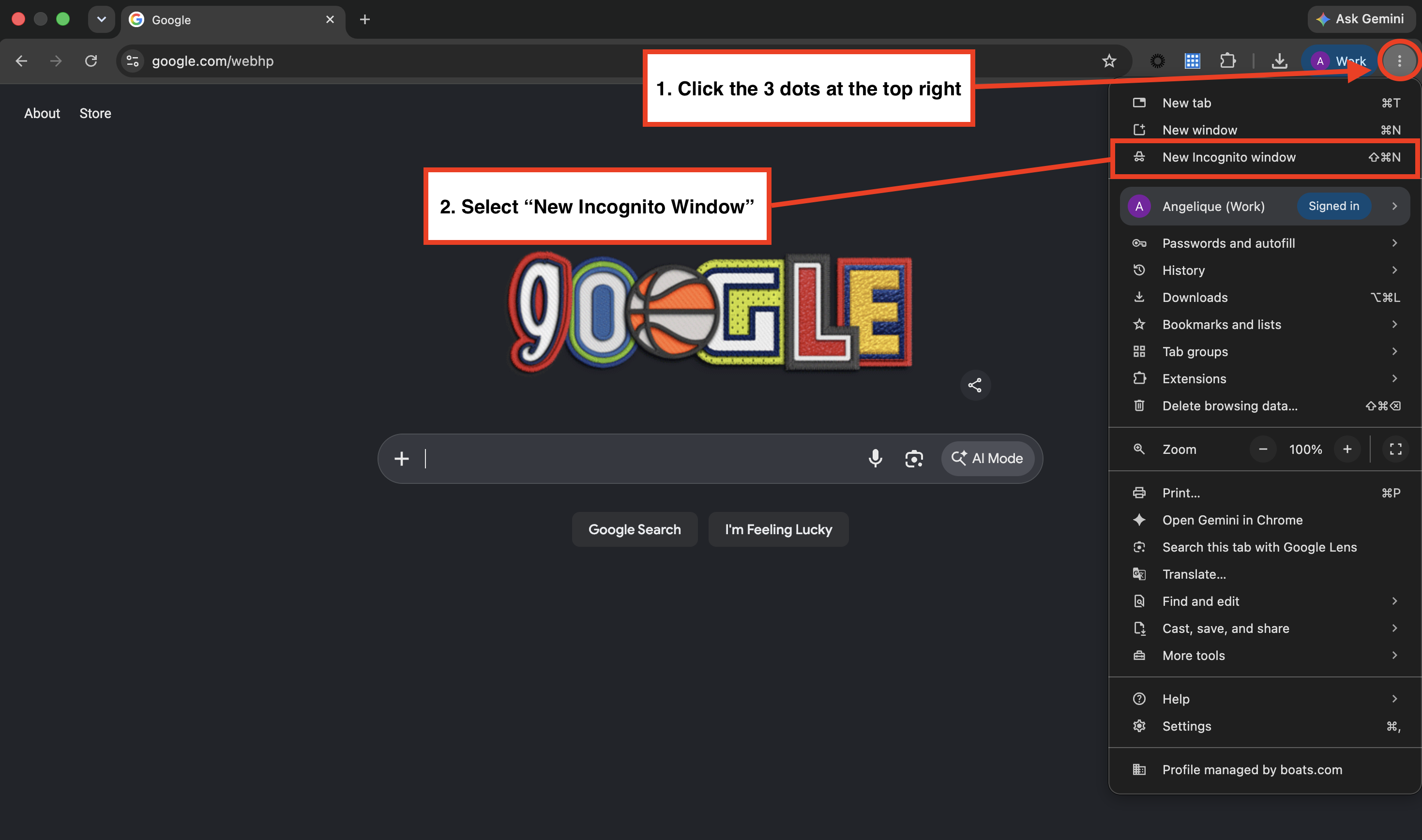
- Click the three dots (⋮) in the top-right corner of your Google Chrome browser.
- Select New Incognito Window.
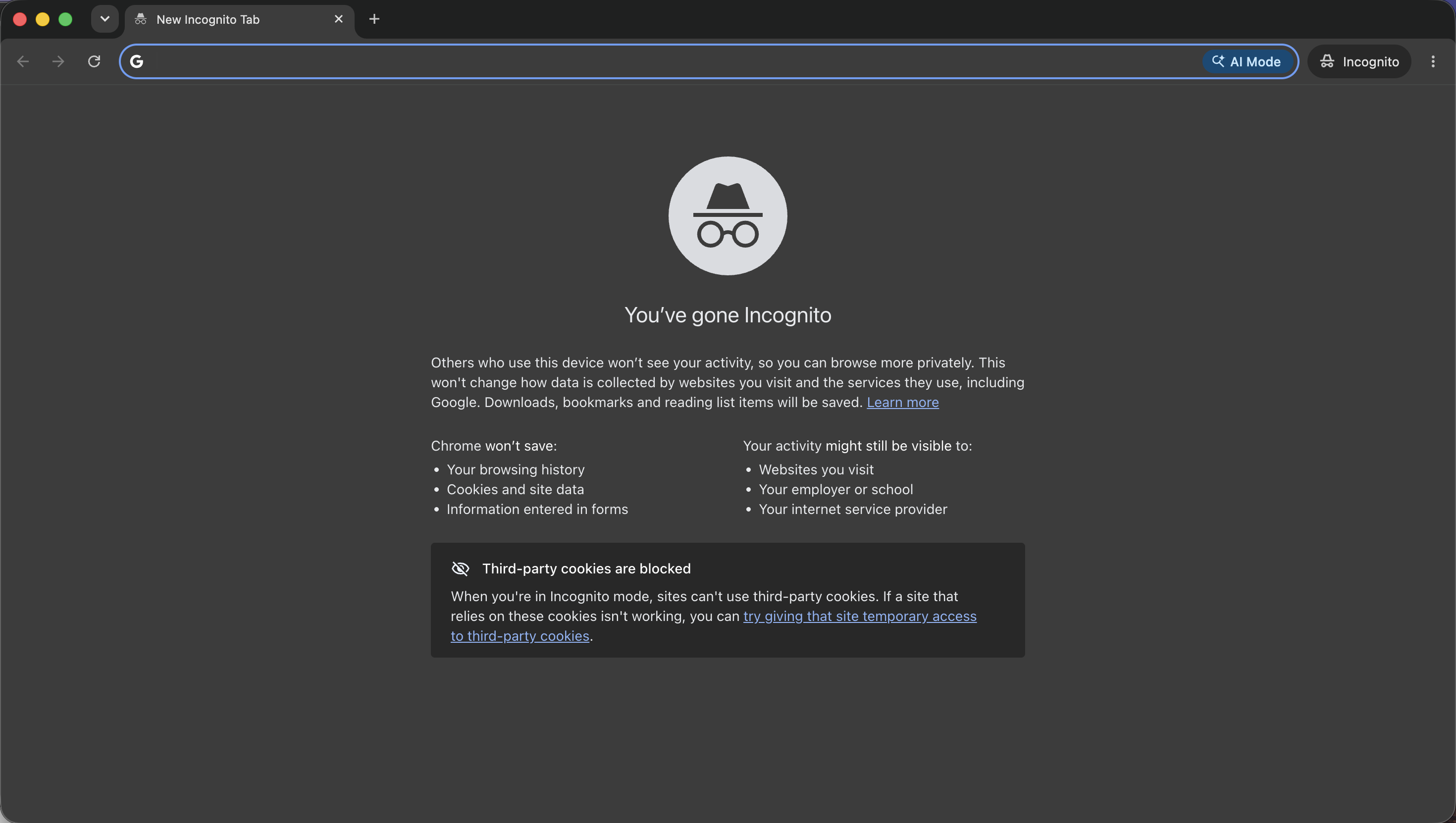
After clicking New Incognito Window, a new tab should appear on your screen. Please see the image below as a reference.
Tip: If you’re experiencing an issue in your regular Chrome browser, try performing the same search or action in an Incognito window. If the issue doesn’t occur there, it may help indicate that browser settings, extensions, or cached data could be contributing to the issue.
Keyboard shortcut
You can also open an Incognito window using:
- Mac: Command + Shift + N
- Windows: Ctrl + Shift + N
Have additional questions? Please reach out to your Account Manager for assistance.